Android Auto connects your Android phone to your car’s dashboard, bringing navigation, calls, messages, and entertainment to your vehicle’s display. Instead of handling your phone while driving, you control everything through your car’s touchscreen, physical buttons, or voice commands through Google Assistant.
The setup is straightforward: your phone stays in your pocket or a mount while Android Auto mirrors essential apps to your dashboard. Navigate with Google Maps or Waze. Make calls hands-free. Send messages using voice dictation. Stream music from Spotify, YouTube Music, or any compatible audio app. All while keeping your attention on the road.
If you’re buying a new vehicle, Android Auto compatibility is nearly universal. Here’s everything you need to know about using it and keeping it working properly.
What You Need for Android Auto
Before you start, verify these requirements:
Phone Compatibility: For wired Android Auto, you need an Android phone with Android 9.0 (Pie) or higher and an active data plan. For wireless Android Auto, Google requires a phone with 5GHz Wi-Fi support and one of the following:
Any phone with Android 11.0 or higher.
A Google or Samsung phone with Android 10.0 or higher.
A Samsung Galaxy S8, Galaxy S8+, or Note 8 with Android 9.0.
Keep your Android operating system updated to the latest version for the best experience, and to ensure you aren’t caught without it when you need it most.
Vehicle Compatibility: Android Auto works with over 500 models. Most new cars now include Android Auto as either a standard or optional feature. Check your owner’s manual or contact your manufacturer to confirm whether your vehicle supports wired, wireless, or both connection types.
When you’re ready to buy or lease your next vehicle, Cartelligent verifies exactly which technology features come standard or optional on the specific model you want. Whether you choose delivery or pickup, we’ll walk you through setting up Android Auto so you’re ready to drive with everything connected from day one.
How to Use Android Auto: Initial Setup [VIDEO]
Make sure your car is in park with the infotainment system on, and allow time to set up Android Auto before you start your drive.
Wired Connection Setup
Plug a USB cable into your vehicle’s USB port, then plug the other end of the cable into your phone. Some car models require a specific USB port, check your owner’s manual to find out which one supports Android Auto.
Critical Cable Detail: Google recommends using a cable that is under 1 meter (three feet) long. Not all USB cables support data transfer. Charging-only cables won’t work with Android Auto. Always use a high-quality, USB-IF certified cable rated for data transfer. If your current cable is fraying or generic, replace it with a certified option.
Follow the on-screen instructions to set up Android Auto. Your phone might ask you to update Android Auto before you continue. The first time you connect, the system will ask for permissions to access contacts, calls, messages, calendar, location, and notifications. Accept these permissions to access all functions.
Once connected, Android Auto should launch automatically on your vehicle’s screen. If it doesn’t appear, tap the Android Auto icon on your car’s display.
Wireless Connection Setup
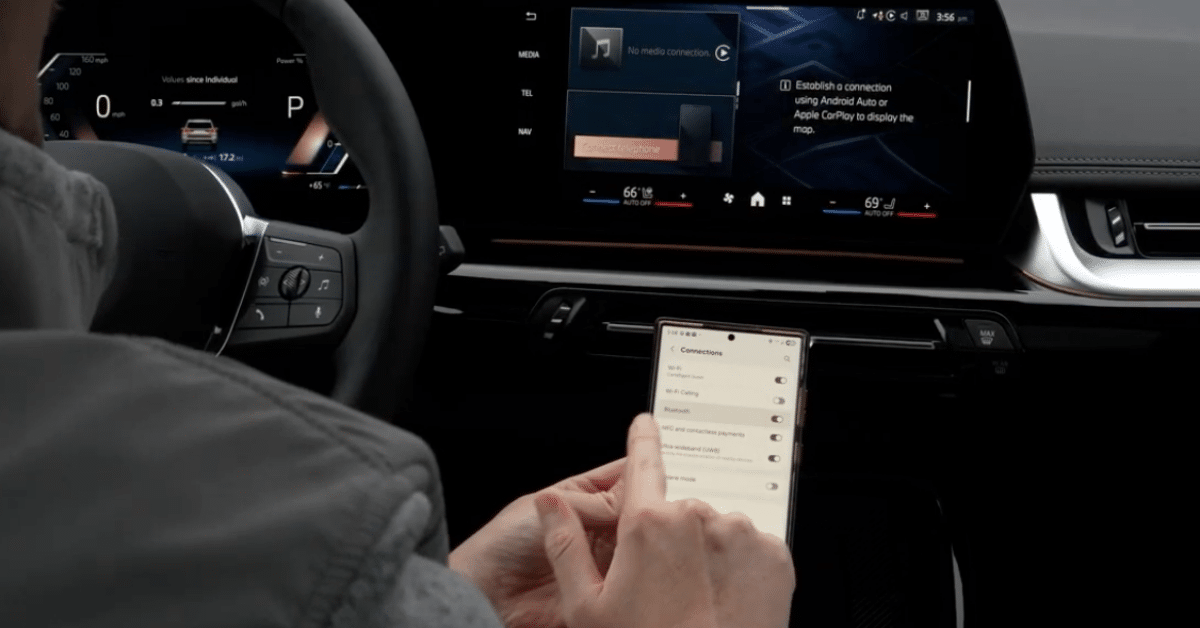
The first time you connect wirelessly, you will need to pair your phone and car via Bluetooth.
On your phone, navigate to the Bluetooth menu (you can find it in your phone’s Settings). On your steering wheel, press and hold the voice command button to open the menu to pair a new phone. Follow the prompts to complete Bluetooth pairing.
On your phone, confirm that both Bluetooth and Location Services are turned on, in addition to WiFi. Wireless Android Auto relies on the combination of Bluetooth (for initial pairing and communication) and 5GHz WiFi (for high-speed data transfer). Once your phone is paired with your car via Bluetooth, Android Auto should start within a few seconds. If it doesn’t, follow the on-screen prompts or tap Android Auto on your car display.
After the initial setup, your phone will automatically connect to Android Auto whenever you start your car.
Using Android Auto Features
Once connected, Android Auto displays a simplified interface designed for driving safety.
Navigation: Access Google Maps or Waze for turn-by-turn directions with real-time traffic updates. Voice commands let you set destinations without touching your phone.
Communication: Make and receive calls hands-free. Android Auto uses AI to provide concise summaries of long, active group chats, so you can quickly catch up while keeping your focus on the road. Send messages using voice dictation through Google Assistant.
Entertainment: Stream music from Spotify, YouTube Music, Pandora, or any compatible audio app. Control playback through your car’s touchscreen or steering wheel controls.
Voice Assistant: Google’s new Gemini AI assistant is being integrated directly into Android Auto to replace the classic Google Assistant experience. Activate it by saying “Hey Google” or pressing your steering wheel voice button. For continuous, back-and-forth conversation, say “Hey Google, let’s chat” to enter Gemini Live mode, which stays active for follow-up questions without repeating the wake word.
Troubleshooting Common Android Auto Problems
Android Auto Won’t Connect
Check your basics first:
Verify your phone meets minimum requirements (Android 9.0 or higher for wired, Android 11.0/10.0 or higher for wireless).
Confirm Android Auto has all necessary permissions: Settings > Apps > Android Auto > Permissions
Make sure the USB mode is set to File Transfer or PTP (Picture Transfer Protocol), not Charging only. MTP (Media Transfer Protocol) is also a valid option, but PTP is sometimes a more reliable alternative if MTP fails.
For wired connections:
Try unplugging your phone and plugging it back in. This often fixes the problem.
USB cables can wear out over time. A small tear or fray may prevent your phone from connecting properly.
Try a different USB port if your vehicle has multiple options.
Replace your cable with a USB-IF certified option ideally under three feet long.
For wireless connections:
Confirm both Bluetooth, WiFi, and Location Services are turned on.
Try clearing the cache and storage for the Android Auto system app (Settings > Apps > See all apps > Android Auto > Storage & Cache > Clear storage + Clear Cache).
Forget the current Bluetooth and WiFi connection to your car, then repair them from scratch.
Ensure your phone supports 5GHz Wi-Fi.
Android Auto Keeps Disconnecting
A faulty cable causes many Android Auto connection problems. If you see frequent disconnections or Android Auto isn’t loading at all, the cable might be the problem.
For wireless connections:
Ensure your phone is close to the head unit with no obstructions.
Make sure the battery saver or data saver is not limiting connectivity in the background.
Check for interference from other Bluetooth devices.
Consider using a high-quality, certified wireless Android Auto adapter designed to maintain stable connections if your car only supports wired Android Auto natively.
Performance Issues (Slow, Glitchy, or Crashes)
Clear Android Auto’s cache and storage by navigating to Settings > Apps > See all apps > Android Auto > Storage & Cache > Clear storage + Clear Cache.
TIP: Before clearing storage, remember your custom settings will be reset.
Android phones often restrict background processes to save battery life. Go to Settings > Apps > Android Auto > Battery and disable battery optimization or set it to “Unrestricted”. Also turn off Battery Saver mode while using Android Auto.
Voice Commands Not Working
Check your Android phone’s microphone permissions by navigating to Settings > Apps > See all Apps > Android Auto > Permissions > Microphone and selecting “Allow only while using the app”.
Ensure your vehicle is Android Auto compatible and that your phone’s Bluetooth connection is active. Microphone issues can also stem from poor Bluetooth connectivity even on wired setups.
Audio Problems
If your phone connects but audio doesn’t work, check that your car’s audio system is set to the correct source. Some vehicles have separate volume controls for navigation versus media. Adjust volume while the specific audio type (navigation, music) is actively playing.
“Connection Failed” After Android Update
Some Android Auto users report connection issues after updating to a new version of Android, such as Android 16. If you experience issues after an Android update:
Check for subsequent system updates that address the bug.
Try uninstalling and then reinstalling all updates for the Android Auto system app from the Play Store, then reconnecting.
Restart both your phone and car’s infotainment system.
Maintenance Tips
Keep both your phone’s operating system and the Android Auto app updated to the latest versions. Regular updates provide improved stability, security patches, and new features.
If you use Android Auto frequently, inspect your USB cable regularly for wear and replace it when needed. A March 2022 Android Auto update (version 7.5.121104) added a USB Startup Diagnostics tool to tell you if you are using a suitable cable. You can find this tool in Android Auto Settings > Connection Help > USB Startup Diagnostics.
Pro Tip: If you have multiple devices paired, occasionally unpair and “Forget” old devices from both your car and your phone’s Bluetooth settings to maintain a clean connection list, which can resolve general wireless connectivity issues.
Getting Android Auto in Your Next Car
Android Auto transforms how you use your phone while driving, giving you safer access to navigation, calls, messages, and entertainment. Setting it up takes just a few minutes, and when you work with Cartelligent, we set up Android Auto with you at your delivery. Cartelligent is a California-based concierge car buying service dedicated to making the process more convenient, enjoyable, and effective. We handle the research, negotiation, and delivery logistics, providing you with clarity and confidence for one of life’s biggest purchases. It’s the smarter, more confident way to buy or lease a car. Get started with Cartelligent.
Customer Testimonials
Hear from our happy clients about their experiences
“I can’t recommend this service enough. Cartelligent helped us in each step of the process, providing unbiased opinions, helpful information and valuable insights. Christian was wonderful and available to answer all our questions. The ROI of this service is very high.”
Gabriela Belo
“Incredible service from start to finish. Ethan made what is typically a stressful experience into one of the most simple transactions I’ve had…Walked us through every step and made sure any features we wanted were taken care of and at the best price possible. I absolutely recommend taking advantage of this option when you are looking for your next car. “
Nick McCarthy
“I cannot recommend Cartelligent and Ethan Sparrow enough. An excellent experience of buying a new car and selling my old one. So simple. All completed within four days. All of the paperwork simply completed and they were able to make a super deal on the price of my new car. Couldn’t be happier. This is a service that takes the anxiety out of car buying and selling while also saving you money. Hard to beat that!”
Robert Britton
Blog
Explore Our Latest Insights
Stay updated with our recent blog posts.
March 16, 2026
Buy or Lease the Smart Way, Car Buying and Leasing Service
From start to finish, leave the puzzle to us and forget all of that pressure and stress. Just get the expert advice that actually helps you drive off in your new ride.
Blog Form
"*" indicates required fields
Manage Cookie Consent
To provide the best experiences, we use technologies like cookies to store and/or access device information. Consenting to these technologies will allow us to process data such as browsing behavior or unique IDs on this site. Not consenting or withdrawing consent, may adversely affect certain features and functions.
Functional
Always active
The technical storage or access is strictly necessary for the legitimate purpose of enabling the use of a specific service explicitly requested by the subscriber or user, or for the sole purpose of carrying out the transmission of a communication over an electronic communications network.
Preferences
The technical storage or access is necessary for the legitimate purpose of storing preferences that are not requested by the subscriber or user.
Statistics
The technical storage or access that is used exclusively for statistical purposes.The technical storage or access that is used exclusively for anonymous statistical purposes. Without a subpoena, voluntary compliance on the part of your Internet Service Provider, or additional records from a third party, information stored or retrieved for this purpose alone cannot usually be used to identify you.
Marketing
The technical storage or access is required to create user profiles to send advertising, or to track the user on a website or across several websites for similar marketing purposes.